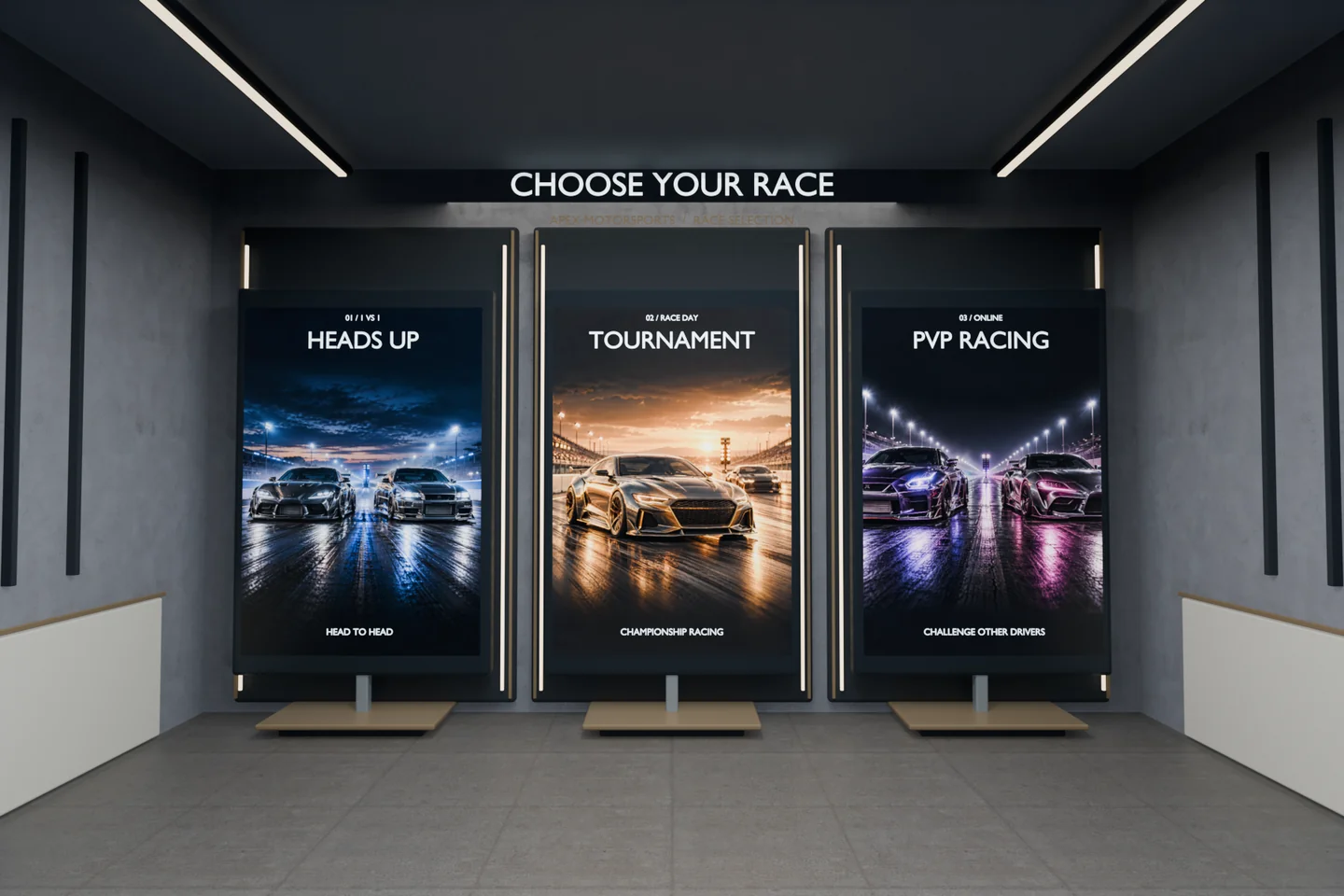
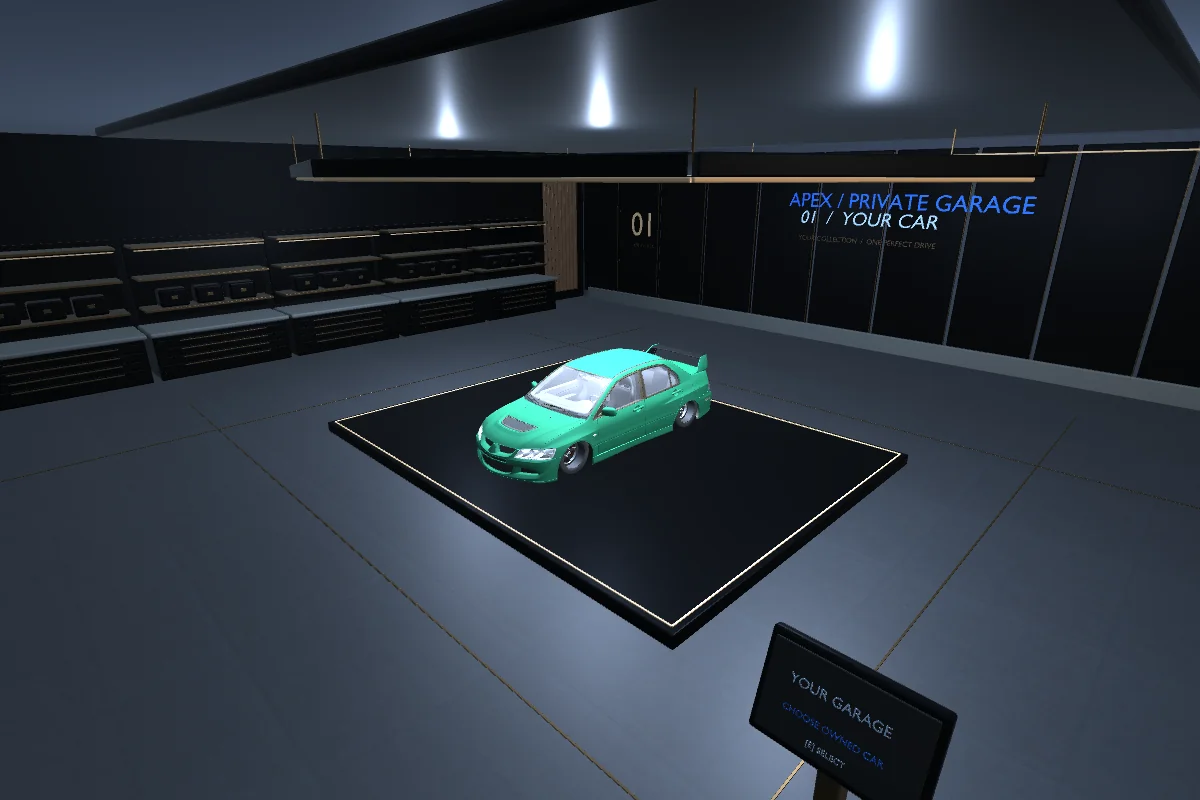
Install the game, create your driver account and choose your first car.
Windows: extract the entire launcher ZIP and open ApexLauncher.exe. Choose Check, Download, Install, then Play. If you prefer the standalone game ZIP, extract it and open ApexDragRacing.exe.
Android: install the current testing APK. Update over your existing installation to retain local settings. Android updates are manual.
Let required game content download. Close and reopen the game if prompted.
Create an account or sign in with your driver name or email. Visit the dealership and select your car.
Head to the racing terminal, enter a 1V1 race and complete your first pass.
The motorsports lobby connects the dealership, garage, parts shop and racing destinations. Use the garage to inspect your car, manage installed parts and access customization.
The Orbit Wisp uses a rotary engine and the Gremlin uses a piston engine. Their engine parts differ. Compare compatible upgrades before spending your cash.
Earn and reinvest
$300Clean win profit
10%Eligible part drop chance
10%Eligible material drop chance
A clean regular-race win earns $300 profit after the entry fee. Losing pays no cash and the entry fee is forfeited. Eligible completed races can also drop parts and materials. Each has a separate 10% chance; a material drop awards one unit from an unlocked tier. Use your rewards to improve your build.
Race an AI opponent. Use repeat runs to improve your launch, shifts and elapsed time.
Race Day
Complete qualifying and advance through elimination rounds. Qualifying does not award cash. Eligible round wins and the champion bonus award cash; the champion also receives a guaranteed part.
Multiplayer / PvP
Race other players when multiplayer services are available. PvP uses a separate staging flow; follow the on-screen instructions.
In development
Dedicated practice mode, circuit racing and roll racing are being developed or explored. Check the roadmap for their status.
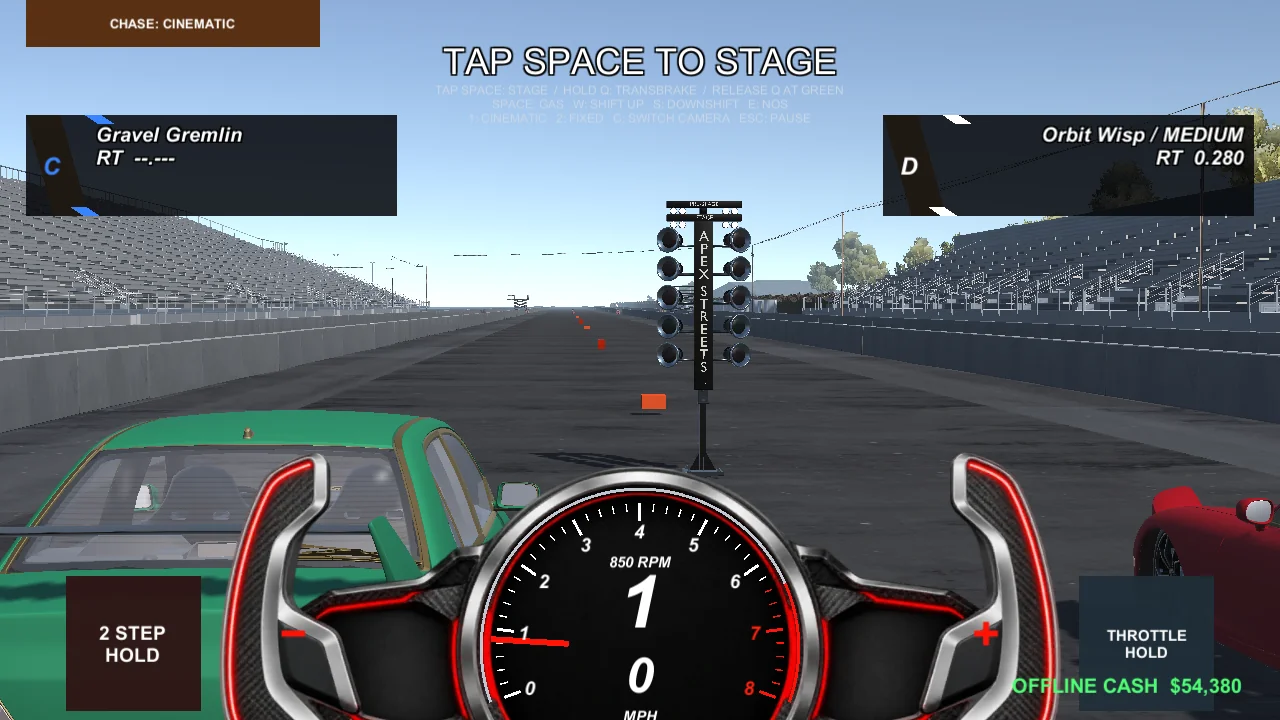
Race dashboard with tachometer, gear indicator and on-screen controls View full size ↗
Action
Windows
Touch
Throttle / start burnout
Space
GAS
Guided staging / two-step
Q
2 STEP
Manual staging brake
Left Ctrl
Follow staging prompts
Shift up
W
Up paddle
Shift down
S
Down paddle
Switch chase camera
C
CHASE
Use the in-game controls guide for the active race mode. Settings also offers three HUD styles, master volume and Cinematic or Fixed chase camera options.
Burnout, staging & launch
Guided staging is the default for solo runs. Follow these steps to prepare the tires and get a clean launch.
Burnout: press Space or GAS to start. Feather the throttle to keep the white RPM marker inside the blue target band. Watch the tire temperature and preparation progress.
Pre-stage: guided mode automatically rolls the car to the first beam after the burnout.
Stage: hold Q or 2 STEP to move into the second beam. Keep the control held as the car stages.
Launch: hold throttle while keeping Q or 2 STEP held. Release Q or 2 STEP when the tree turns green, keeping the throttle held.
Shift: press W or the up paddle when SHIFT NOW appears. Continue until the finish.
Advanced staging
For manual positioning, select Advanced staging in the game. On Windows, use Space to creep and Left Ctrl to stop with both beams lit. If you miss the staging beams, follow the reset prompt. Launching before green can cause a red-light loss.
Reading your timeslip
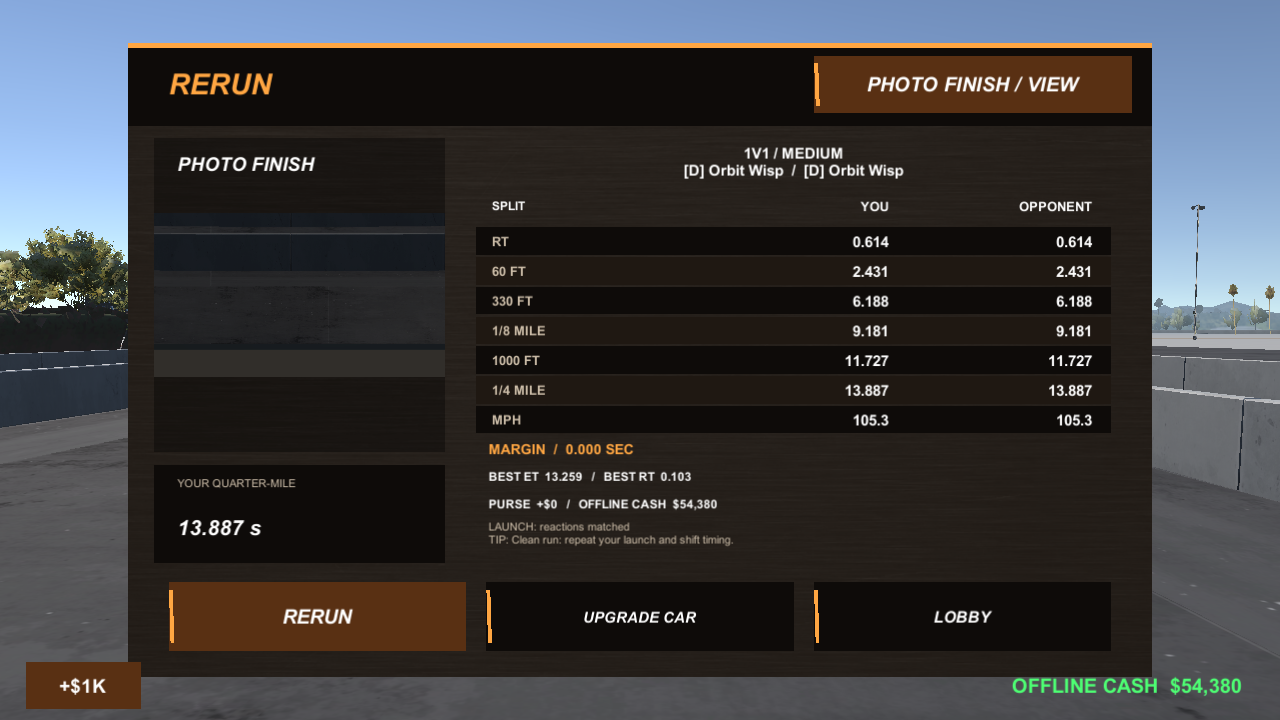
Apex Streets race results with split times and finish margin View full size ↗
Reaction time (RT)
How quickly you launch relative to the green light. A negative RT indicates an early launch.
60-foot time
An early indication of launch and traction performance.
Split times
Intermediate elapsed times that show where you gained or lost time during the run.
Elapsed time (ET)
How long the car takes to complete the race distance after leaving the line.
Finish margin
The time separating the two finishes. Close races may offer a photo-finish viewer.
Compare several clean runs. A slower 60-foot time can suggest a launch or grip issue, while losing time farther down the track can point to shifting or power delivery.
Performance parts
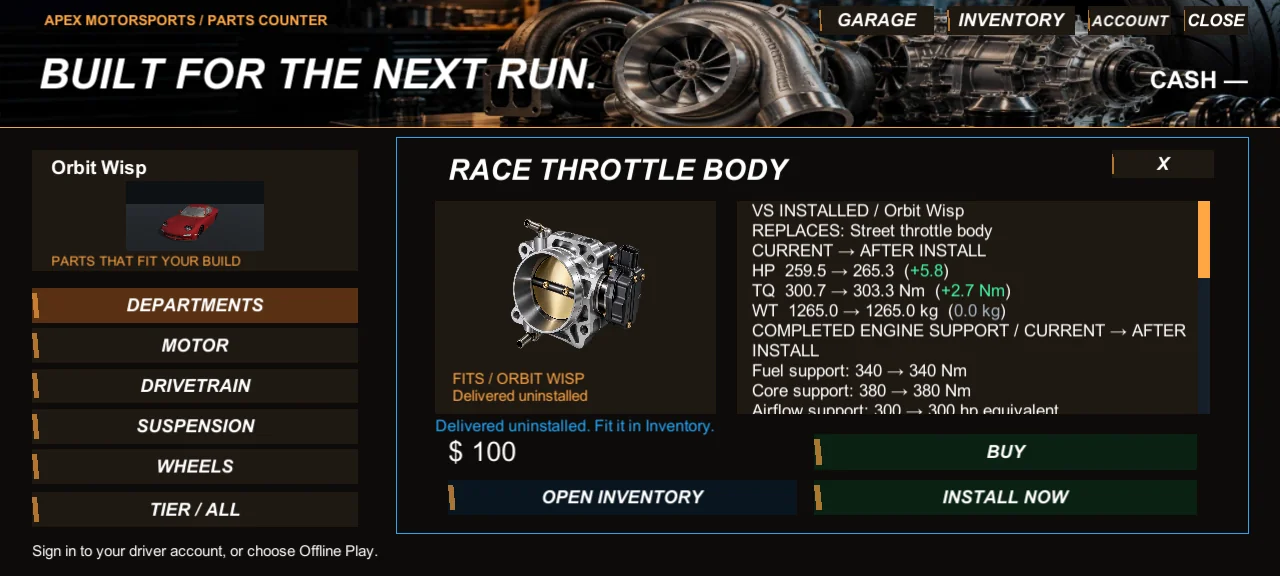
Performance parts shop and installed component comparison View full size ↗
Browse the parts counter for compatible components, compare them against your installed setup, then buy and fit them through your garage. Build across the engine, drivetrain, transmission and suspension instead of relying on a single high-tier part.
Part tiers and upgrade costs
Tier
Per upgrade level
Stock
Factory equipment
Street
$20 + 1 Street material
Pro
$30 + 2 Pro materials
Race
$40 + 3 Race materials
These are part-level upgrade costs, separate from the initial purchase price. Check the shop or upgrade screen for the current price and compatibility before confirming.
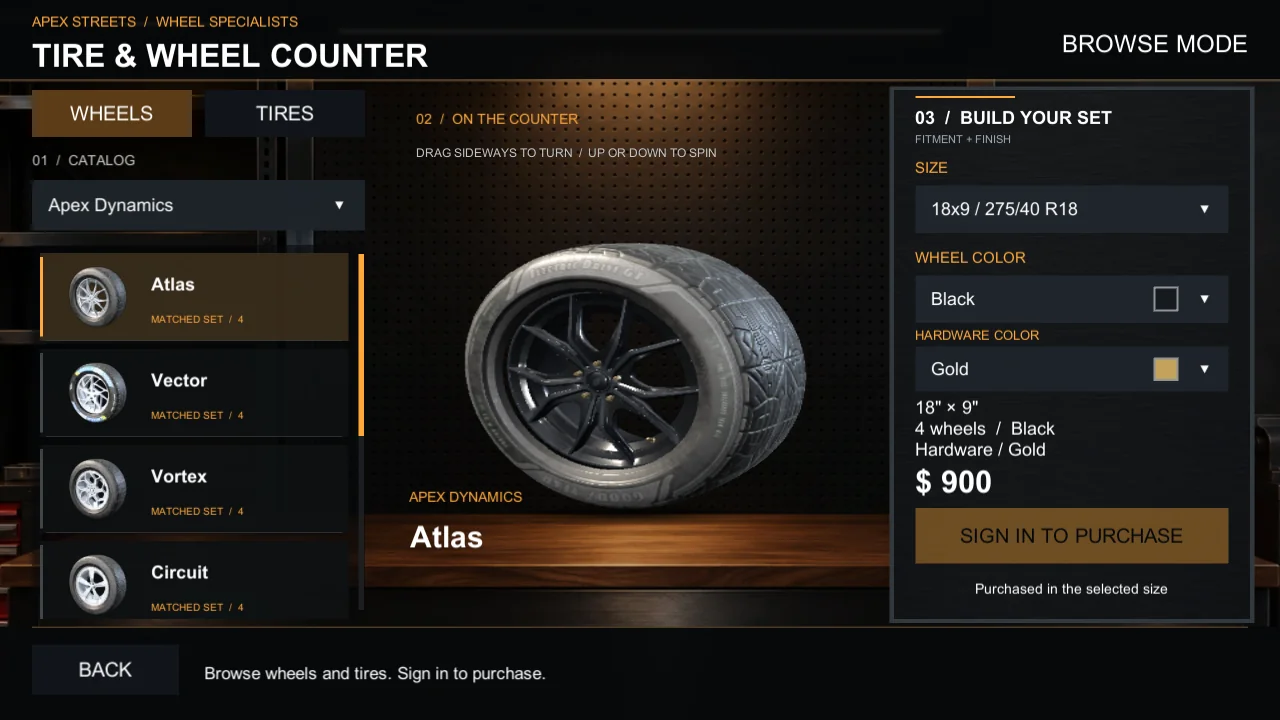
Tire and Wheel Shop with interactive wheel preview View full size ↗
Visit the Tire & Wheel Shop to select wheels, sizes, colors and tire compounds. Rotate the preview to inspect the design. Wheels are purchased in matched sets of four, with the selected size retained by each set.
Hard, Medium and Soft tires have different heating and cooling behavior. Read the compound's working temperature range in the shop and aim for that range during preparation. Compare grip and launch consistency before deciding which compound works best.
Use repeatable runs to evaluate your setup. Power, traction, gearing and shifting all affect how quickly the car completes a pass.
Record a baseline with your current parts and setup.
Choose one change, such as a compatible part, tire compound or launch technique.
Repeat under similar conditions and compare RT, 60-foot time, ET and the later splits.
Keep changes that improve consistent results, then move to the next adjustment.
Shorter gearing can improve acceleration but may require more shifts. Taller gearing can reduce shift frequency but may leave the engine outside its strongest RPM range. Deeper tuning and the dedicated practice entry point remain under development.
Customization
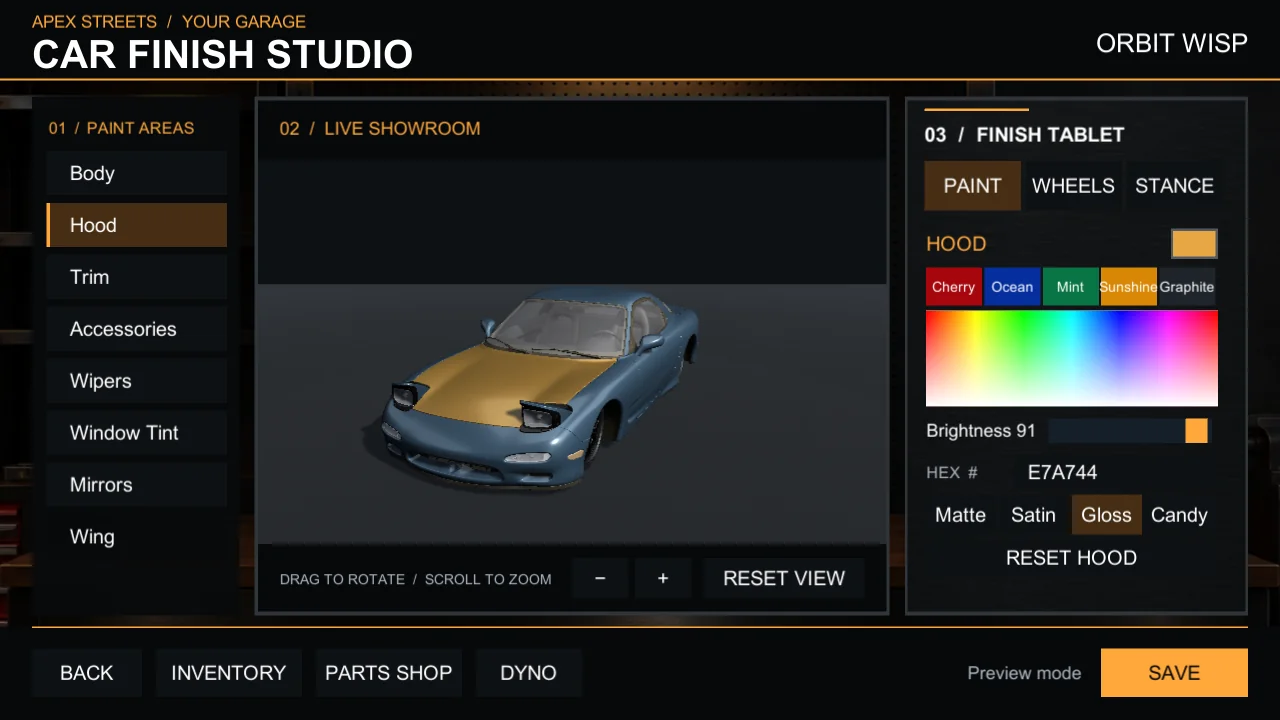
Finish Studio showing vehicle preview and paint controls View full size ↗
Open the Finish Studio to change supported paint areas independently. Choose presets or enter a color, select Matte, Satin, Gloss or Candy for opaque paint, and adjust window tint color and opacity.
Drag the preview to rotate the car and use the mouse wheel or zoom controls to inspect details. Save your finish before leaving. Appearance settings are saved locally for your account and car.
Account & support
Sign in to your website driver profile with your game account to view available stats and race history. Visit the leaderboards to see the available rankings.
If you encounter a connection issue, check server status. For an interrupted purchase or race, follow the game's recovery prompts and avoid repeating the purchase or clearing app data.
Use the in-game Bug, Suggestion or Support form, or join Discord. Include your game version, platform, the issue and steps to reproduce it. Never share your password.
For Android signing conflicts, retain your existing installation and contact support before attempting another update.
No guide topics match your search. Try a different term.